Sharing a WiFi password used to be a frustrating task. I still remember the days when someone visited my home and the first question they asked was, “What’s your WiFi password?” Then I had to search for the password, read out a long combination of letters and numbers, and hope they typed it correctly. Thankfully, Android has made this process much easier.
If you have a modern Android phone, you can share your WiFi password within seconds without typing a single character. Whether you want to help a friend, family member, or colleague connect to your network, Android offers several simple ways to do it.
In this guide, I will explain everything I know about sharing a WiFi password on Android. I will also cover different methods, troubleshooting tips, and answer common questions that many Android users have.
Why Share Your WiFi Password Instead of Typing It
I personally prefer sharing my WiFi password instead of saying it aloud because it is faster and more secure. Most WiFi passwords are long and difficult to remember. Even a small typing mistake can prevent someone from connecting.
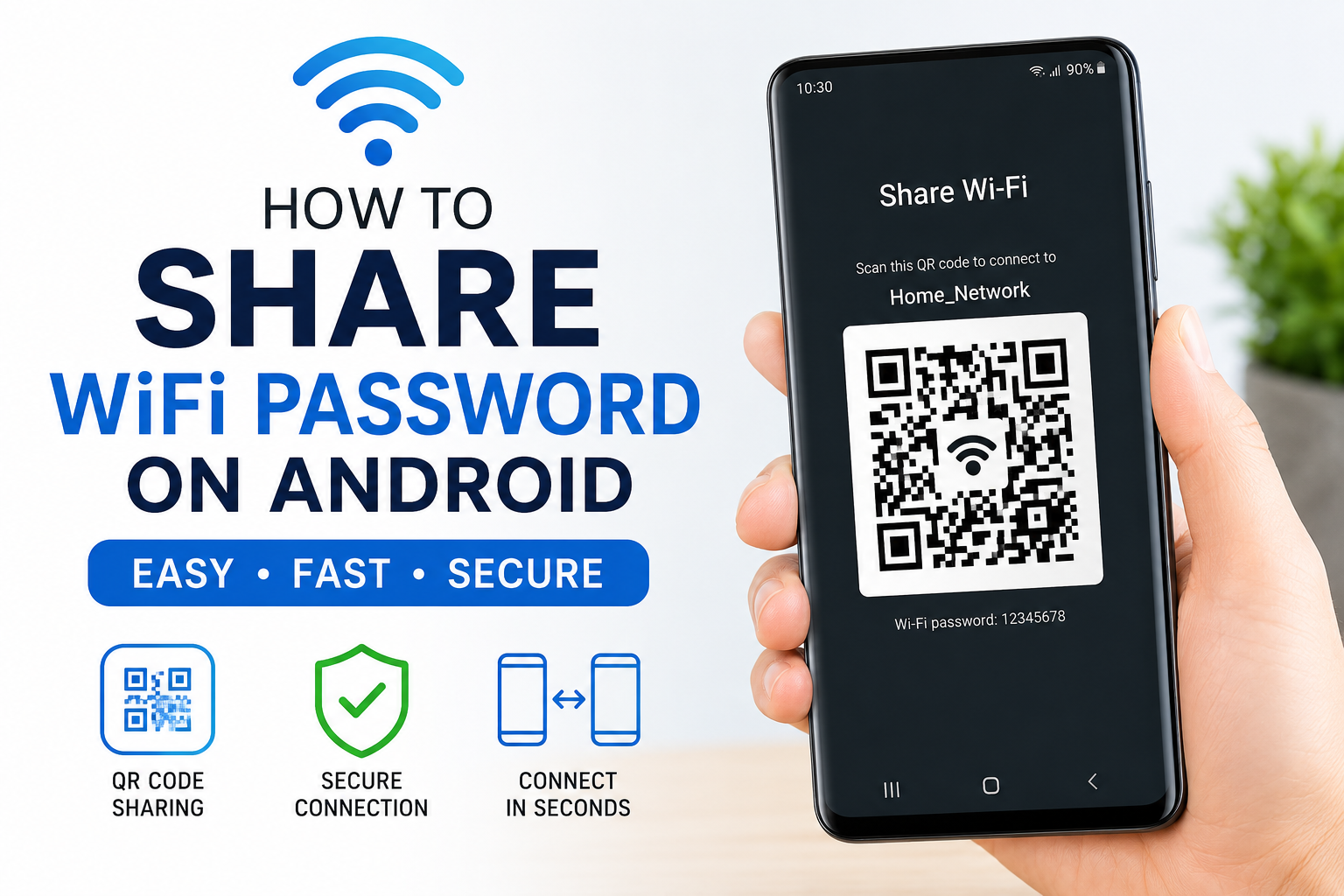
When I use Android’s built in sharing feature, the other person simply scans a QR code, and their phone connects automatically. This saves time and avoids unnecessary confusion.
Some benefits include
It saves time.
It reduces typing mistakes.
It keeps your password private because you do not have to speak it aloud.
It works in just a few seconds.
It is convenient for guests.
Can Every Android Phone Share WiFi Passwords
Most Android phones running Android 10 or later support WiFi password sharing using a QR code. Popular brands include
Samsung Galaxy
Google Pixel
Xiaomi
OnePlus
Realme
Vivo
Oppo
Motorola
Some older Android versions may not have this feature, but there are alternative methods that I will explain later.
Method One
Share WiFi Password Using QR Code
This is the easiest and most popular method.
I use this feature almost every time someone visits my home.
Follow these steps.
Open the Settings app.
Tap Network and Internet or Connections depending on your phone.
Select WiFi.
Tap the connected WiFi network.
Look for the Share option.
You may be asked to verify your identity using your fingerprint, PIN, or password.
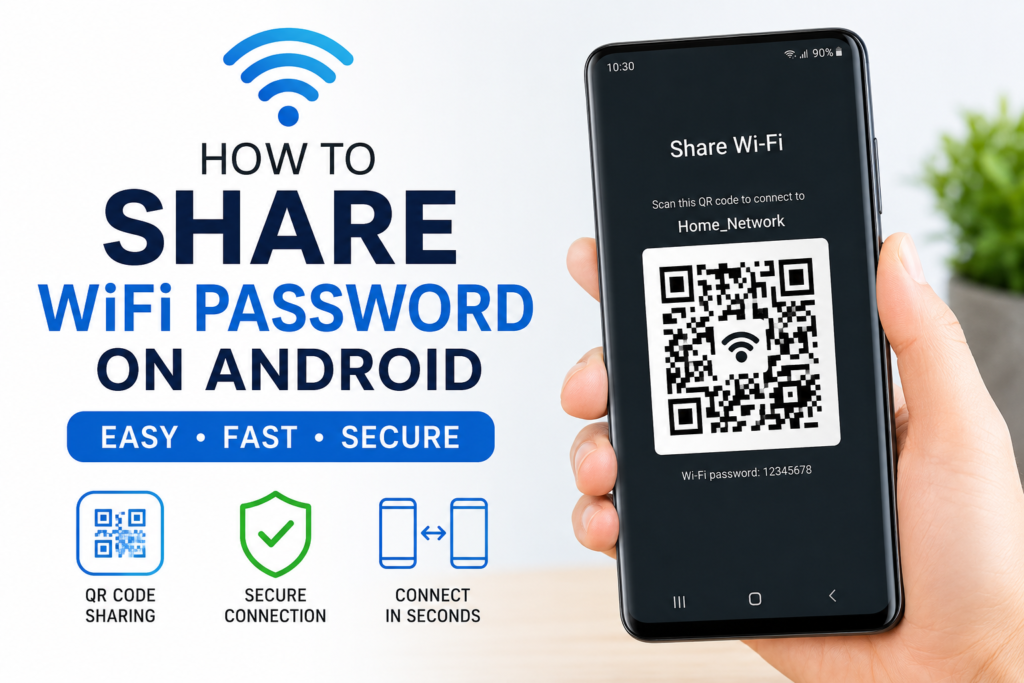
A QR code will appear on the screen.
Ask the other person to open their camera or QR scanner and scan the code.
Within a few seconds, their phone should connect to your WiFi automatically.
This method works quickly and does not require manually entering the password.
Method Two
Share WiFi Password Using Nearby Share
Some Android devices also allow sharing network details through Nearby Share.
To use this feature
Turn on Bluetooth on both devices.
Enable Nearby Share.
Keep both phones close together.
Open WiFi settings.
Choose the connected network.
Select the sharing option if available.
Choose the nearby device.
Accept the request on the receiving phone.
The WiFi information will be transferred securely.
Method Three
Tell the Password Manually
Although it is not my favorite option, manually sharing the password still works.
To see your saved WiFi password
Open Settings.
Go to WiFi.
Select your connected network.
Tap Share.
Authenticate yourself.
The password may appear below the QR code on many Android phones.
You can simply tell the other person or let them type it themselves.
How to Connect by Scanning the QR Code
If someone shares a QR code with you, connecting is very simple.
Open the Camera app.
Point it toward the QR code.
Wait for the notification.
Tap Connect.
Within moments, your phone will join the WiFi network.
Some older phones may require using Google Lens or a QR scanner app if the camera does not recognize QR codes.
What If Your Android Phone Does Not Have the Share Option
Older Android versions may not include QR code sharing.
If this happens, you have a few alternatives.
Check your router for the default password.
Log into your router settings.
Use third party QR code generators if you know the password.
Upgrade your Android software if an update is available.
Many manufacturers added this feature through software updates.
Sharing WiFi Between Samsung Phones
Samsung devices make this process very easy.
Open Settings.
Tap Connections.
Choose WiFi.
Select your connected network.
Tap QR Code or Share.
Authenticate using your fingerprint.
Show the QR code to the other device.
Samsung’s interface is clean and works reliably in my experience.
Sharing WiFi Between Google Pixel Phones
Google Pixel phones also have a straightforward process.
Open Settings.
Go to Network and Internet.
Tap Internet.
Select your connected WiFi.
Tap Share.
Verify your identity.
The QR code will appear instantly.
Pixel phones usually provide one of the smoothest Android experiences.
Is Sharing WiFi Password Safe
Yes, I believe it is much safer than telling the password aloud.
Android encrypts the information and only reveals it after device authentication.
Using QR codes also reduces the chance of someone overhearing your password.
However, only share your WiFi with people you trust.
Avoid posting your WiFi QR code publicly because anyone who scans it can connect to your network.
What If the QR Code Does Not Work
Sometimes the QR code may fail to connect.
Here are a few things I usually try.
Increase the screen brightness.
Move the phone closer.
Clean the camera lens.
Restart both phones.
Reconnect to WiFi.
Generate the QR code again.
Update both devices.
Most QR code issues are solved with one of these simple fixes.
Can You Share a Hotspot Password the Same Way
Mobile hotspot sharing depends on the phone manufacturer.
Some Android devices generate QR codes for hotspot connections.
Others require manually sharing the hotspot password.
You can check this by opening
Settings
Network
Hotspot
If QR sharing is supported, you will find a Share or QR Code option.
How to Find Saved WiFi Passwords
Many Android devices allow viewing saved passwords.
Open WiFi settings.
Select the connected network.
Tap Share.
Authenticate yourself.
The password will usually appear under the QR code.
If it does not, you may only see the QR code, which still makes sharing very easy.
Common Problems While Sharing WiFi
Sometimes users face small issues.
Here are the most common ones.
The Share button is missing.
The QR code does not scan.
Authentication fails.
The receiving phone cannot connect.
The network disconnects repeatedly.
Most of these problems can be solved by updating Android, restarting the phone, or reconnecting to the WiFi network.
Tips for Secure WiFi Sharing
I always recommend following a few safety practices.
Use a strong WiFi password.
Change the password regularly.
Do not share your WiFi with strangers.
Use WPA2 or WPA3 security if available.
Restart your router occasionally.
Remove unknown connected devices.
These simple habits help keep your network safe.
Frequently Asked Questions
Can I share WiFi without revealing the password
Yes. The QR code method lets someone connect without manually typing the password.
Does this work on Android 9
Some Android 9 devices support it, but most require Android 10 or later.
Do both phones need internet
No. Only the phone sharing the WiFi needs to be connected to the network.
Can iPhone scan Android WiFi QR codes
Yes. Modern iPhones can scan compatible WiFi QR codes using the Camera app.
Is the QR code permanent
The QR code works as long as the WiFi password remains the same. If you change the password, a new QR code will be generated.
Can I print the QR code
Yes. Many people print their WiFi QR code and place it in their home or office so guests can connect easily.
Final Thoughts
Sharing a WiFi password on Android has become incredibly simple. I no longer waste time searching for complicated passwords or helping guests type them correctly. The built in QR code feature has made the process fast, secure, and convenient.
If your Android phone supports this feature, I highly recommend using it whenever someone needs internet access. It saves time, reduces mistakes, and offers a much smoother experience than manually sharing a long password.
Whether you own a Samsung, Google Pixel, Xiaomi, OnePlus, Vivo, Oppo, or another Android device, the process is almost identical. Once you learn it, you will probably never go back to reading your WiFi password aloud again.