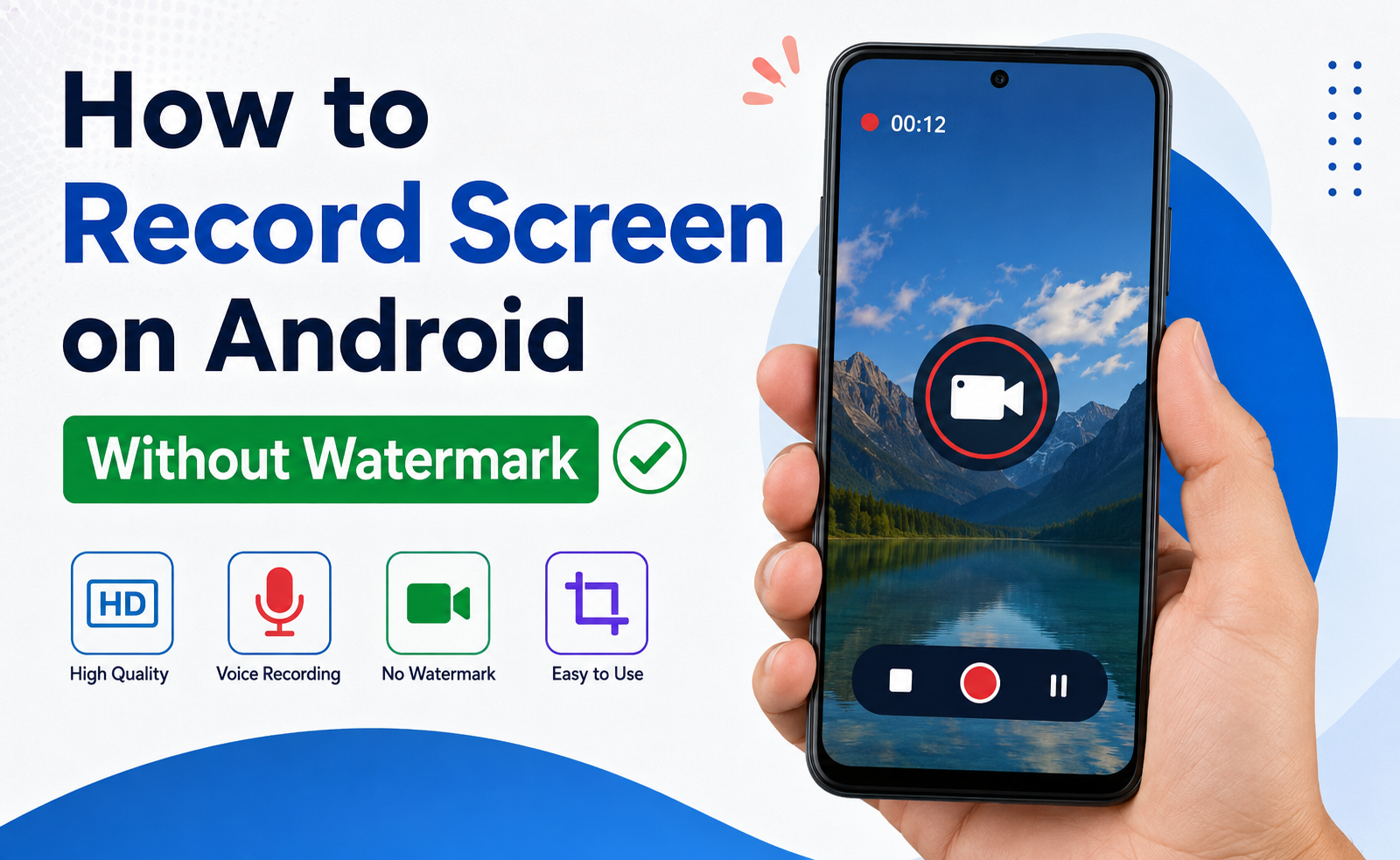
Have you ever wanted to record your Android screen to create a tutorial, save gameplay, show someone how to fix a problem, or keep an important video for personal use? I have been in that situation many times. At first, I downloaded random screen recorder apps from the Play Store, but most of them added an annoying watermark to every recording. It made the videos look unprofessional and sometimes even covered important parts of the screen.
After trying different methods, I found that recording an Android screen without a watermark is actually very easy. You do not always need expensive apps or premium subscriptions. Many Android phones already include a built in screen recorder, and there are also free applications that let you record clean videos without placing their logo on the screen.
In this article, I will share the methods that I personally use to record my Android screen without any watermark. Whether you have a Samsung, Xiaomi, Oppo, Vivo, Realme, OnePlus, Motorola, Google Pixel, or another Android phone, these tips will help you create high quality recordings.
Why Record Your Android Screen
Screen recording is useful for many reasons. I often use it whenever I need to explain something to friends or family. Instead of typing long messages, I simply record my screen while showing every step.
Some common reasons include:
Creating YouTube tutorials
Recording mobile gameplay
Saving online classes
Sharing software bugs with developers
Showing phone settings to friends
Recording social media content for personal reference
Making presentations
Whatever your purpose is, a watermark free recording always looks cleaner and more professional.
Use the Built In Screen Recorder
The easiest method is using the screen recorder already available on your Android phone.
Today, almost every modern Android device comes with this feature. Since it is built into the operating system, there is no watermark.
To use it, swipe down from the top of your screen to open Quick Settings. Look for the Screen Recorder option. If you cannot find it immediately, edit the Quick Settings panel and add it.
Tap Screen Recorder.
Choose whether you want to record system audio, microphone audio, or both.
Enable touch indicators if needed.
Press Start.
After a short countdown, your recording begins.
When you finish, tap the Stop button from the notification panel.
The video is automatically saved in your gallery without any watermark.
Phones That Usually Include Screen Recorder
Most Android brands already provide this feature.
Samsung Galaxy
Google Pixel
OnePlus
Realme
Oppo
Vivo
Xiaomi
Redmi
Poco
Motorola
Nothing Phone
If your phone is running Android 11 or a newer version, there is a very good chance that you already have a built in recorder.
Best Free Apps Without Watermark
If your phone does not include a screen recorder, you can install a trusted application from the Play Store.
Here are some of my favorite options.
AZ Screen Recorder
This is one of the oldest and most reliable screen recording apps.
The free version allows watermark free recording if you keep the watermark option disabled.
Features include:
HD recording
Internal audio support on supported devices
Facecam recording
Countdown timer
Video trimming
Simple controls
I have personally used this app for years and found it very stable.
XRecorder
XRecorder is another excellent application.
It offers smooth recording, high video quality, and easy controls.
Features include:
No recording time limit
HD quality
Face camera
Video editing
Internal audio support
No watermark after disabling the option
The interface is beginner friendly.
Screen Recorder by Kimcy929
If you prefer a lightweight application, this one is worth trying.
It consumes less storage and records smooth videos even on older Android devices.
How to Disable Watermark in Apps
Some screen recorder applications enable their logo by default.
Fortunately, turning it off is very simple.
Open the app settings.
Find the Watermark option.
Disable it.
Save your settings.
Now every recording will be clean and professional.
Always check this setting before recording your first video.
Choose the Best Recording Quality
For better looking videos, I recommend adjusting the recording quality.
These settings usually work well.
Resolution
Use 1080p if your phone supports it.
Frame Rate
Choose 60 FPS for gaming.
Choose 30 FPS for normal tutorials.
Bit Rate
Higher bit rates produce better quality.
If your phone has enough storage, choose High or Very High quality.
Orientation
Keep the screen locked in portrait or landscape before recording.
This prevents the video from rotating unexpectedly.
Record Internal Audio
Many people ask how to record game sound or app audio.
Modern Android versions support internal audio recording.
When starting the recorder, choose Internal Audio or Device Audio.
If your phone does not support it, only microphone recording may be available.
Some manufacturers limit internal audio recording because of copyright rules.
Record Your Voice
For tutorials, I always enable the microphone.
Speaking while demonstrating each step makes the video much easier to understand.
Try recording in a quiet room.
Avoid fan noise.
Keep the phone microphone uncovered.
Speak clearly.
Your audience will appreciate better sound quality.
Free Up Storage Before Recording
Screen recordings can become quite large.
Before recording, I usually delete unnecessary files.
Clear old downloads.
Remove duplicate photos.
Delete unused applications.
Move videos to cloud storage.
This prevents recording from stopping because of insufficient storage.
Turn On Do Not Disturb Mode
Notifications can interrupt your recording.
Messages, phone calls, and app alerts may appear during the video.
Before recording, enable Do Not Disturb mode.
This keeps the recording clean and distraction free.
Lock Brightness
Automatic brightness sometimes changes while recording.
This can make the video look inconsistent.
Set the brightness manually before starting.
Your recording will look much smoother.
Close Background Apps
Running many applications at the same time can reduce recording performance.
Before recording, close unnecessary apps.
This helps your phone focus on the recording process.
The result is smoother video with fewer frame drops.
Record Gameplay Without Lag
If you want to record mobile games, here are the settings I personally recommend.
Close all background apps.
Use Game Mode if available.
Record at 60 FPS.
Charge the phone before recording.
Reduce screen brightness slightly.
Keep enough free storage.
These simple steps improve performance significantly.
Edit the Video After Recording
After recording, I usually make a few quick edits.
Trim the beginning.
Remove the ending.
Crop unnecessary parts.
Add captions if needed.
Increase audio volume.
Simple editing makes your content look much more professional.
Many free editors can handle these tasks easily.
Common Problems and Solutions
Sometimes users face small issues while recording.
Recording Stops Automatically
This usually happens because storage becomes full or battery saving mode closes the recording app.
Charge your phone and free up storage.
No Sound in Video
Check whether microphone or internal audio permission is enabled.
Restart the application if necessary.
Video Looks Blurry
Increase the recording resolution and bit rate.
Clean your screen before recording.
Phone Gets Hot
Long recordings can warm up your device.
Take short breaks between recordings.
Avoid recording while charging.
Close unnecessary applications.
Tips for Better Screen Recordings
Here are some habits that always help me create better videos.
Clean your phone screen before recording.
Use stable internet if recording online content.
Practice once before making the final recording.
Keep your phone battery above fifty percent.
Hide personal notifications.
Record in a quiet environment.
Use landscape mode for YouTube videos.
Speak naturally while explaining.
Review the recording before sharing it.
These small improvements make a big difference.
Is Screen Recording Safe
Yes, screen recording is completely safe when using trusted applications or the built in Android recorder.
However, always download apps from the Google Play Store instead of unknown websites.
Also remember that recording copyrighted videos or private conversations without permission may violate local laws or platform policies.
Always respect privacy and copyright rules.
Final Thoughts
Recording your Android screen without a watermark is much easier than many people think. In my experience, the built in Android screen recorder is the best option because it is free, simple, and produces clean videos without adding any logo. If your phone does not include this feature, trusted apps like AZ Screen Recorder or XRecorder can also do an excellent job when their watermark setting is turned off.
I always recommend checking your recording quality, enabling the correct audio source, clearing enough storage, and turning on Do Not Disturb mode before starting. These small preparations help create smooth and professional looking videos every time.
Whether you are making tutorials, recording gameplay, saving online classes, or helping friends solve phone problems, watermark free screen recordings leave a much better impression. With the methods shared in this guide, you can confidently record high quality Android screen videos without spending money or dealing with unwanted logos.