Have you ever wanted to save an entire webpage, a long chat conversation, or a detailed document on your Android phone but found that a normal screenshot only captures the visible part of the screen? I have faced this situation many times, especially while saving online articles, important messages, or payment receipts. Taking multiple screenshots was always frustrating because it made everything difficult to manage later.
Thankfully, Android now offers a much better solution called the long screenshot feature. This feature allows you to capture an entire scrolling page in one image instead of taking several separate screenshots. It saves time, keeps everything organized, and makes sharing information much easier.
In this article, I will explain everything I know about taking long screenshots on Android. Whether your phone already supports this feature or not, I will show you different methods that actually work.
What Is a Long Screenshot
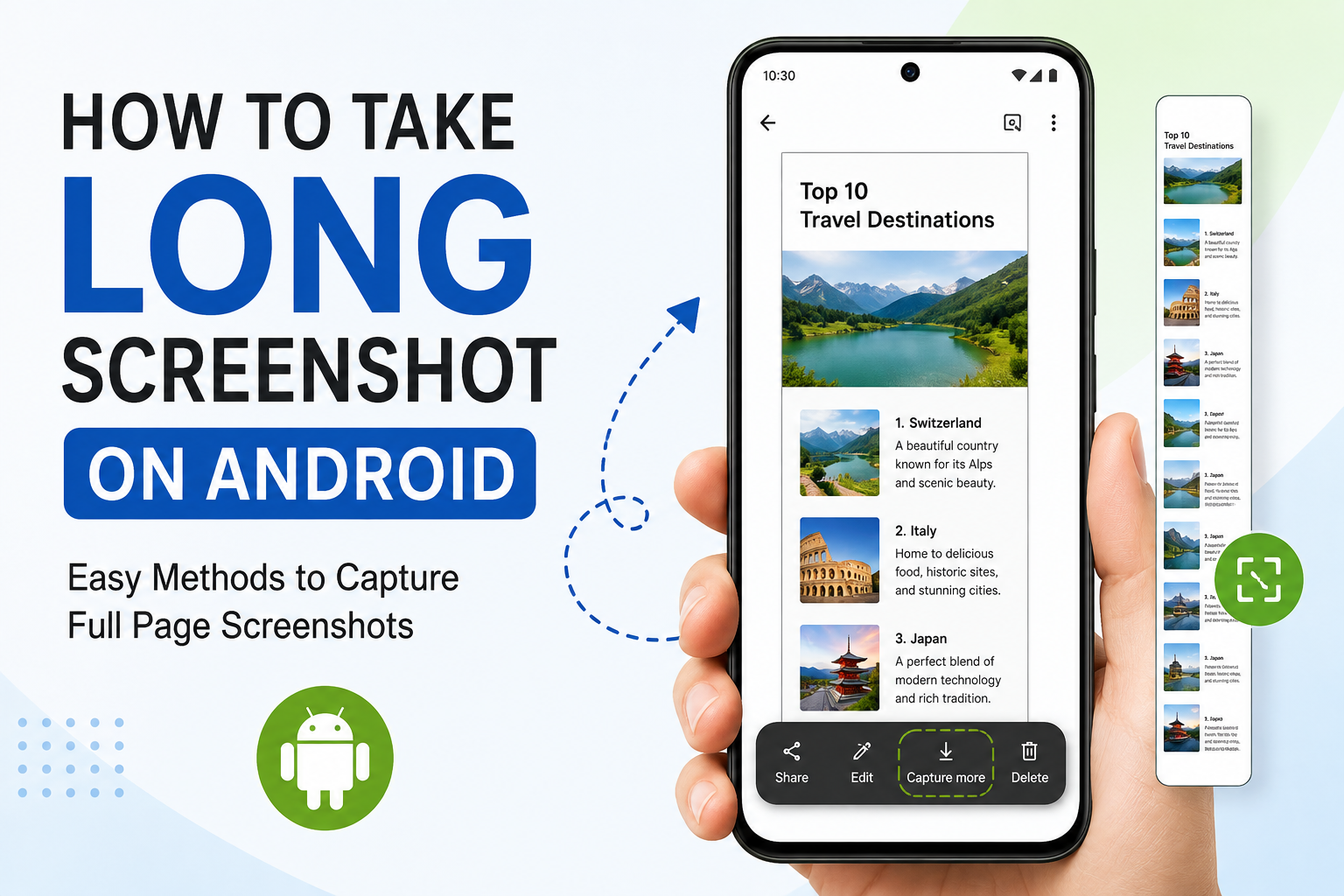
A long screenshot is also known as a scrolling screenshot. Unlike a regular screenshot that captures only the visible portion of your screen, a long screenshot continues capturing the page as you scroll downward.
This feature is useful for many situations. You can save long conversations from messaging apps, capture complete web pages, store detailed invoices, or keep long notes without breaking them into several images.
Instead of opening five or six screenshots later, you only need one image that contains everything.
Which Android Phones Support Long Screenshots
Most modern Android phones already include this feature. If your device is running Android 12 or a newer version, there is a good chance that scrolling screenshots are supported.
Many smartphone brands also provide this feature in their own user interface.
Samsung phones include Scroll Capture.
Xiaomi devices offer Scrolling Screenshot.
OnePlus phones provide Expanded Screenshot.
OPPO and Realme include Long Screenshot.
Vivo also supports scrolling screenshots on many of its recent models.
Google Pixel devices support scrolling screenshots starting from Android 12.
If your phone is older, you may still be able to take long screenshots using third party applications.
Method One Using the Built In Android Feature
This is the easiest and most convenient method if your phone supports scrolling screenshots.
First, open the webpage, chat, or document that you want to capture.
Take a normal screenshot by pressing the Power button and the Volume Down button at the same time.
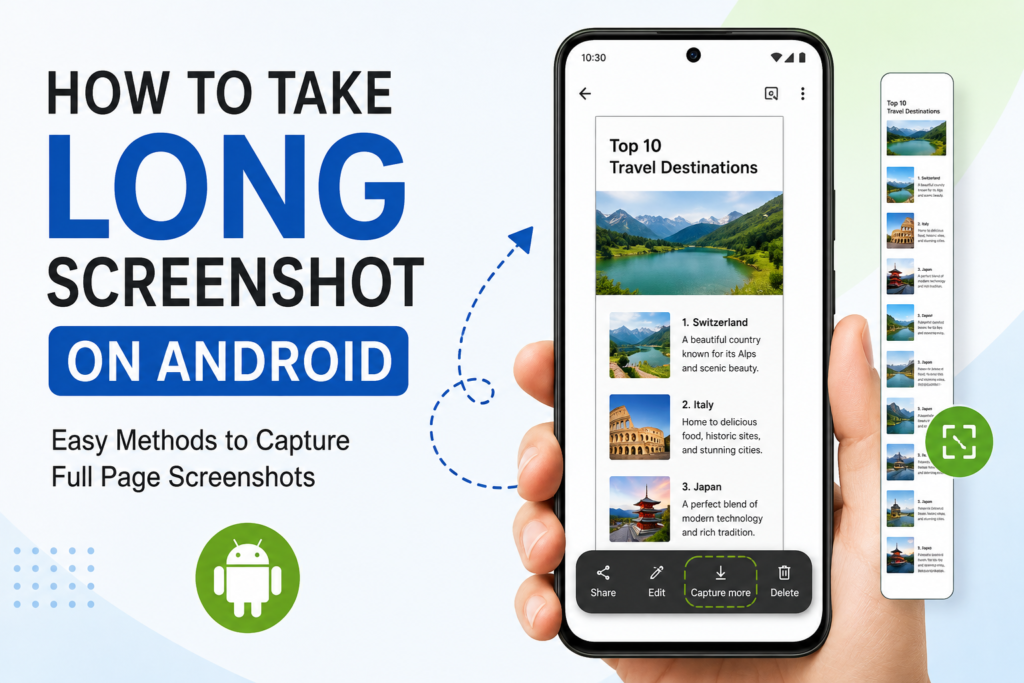
A screenshot preview will appear at the bottom of your screen.
Look for an option such as Capture More, Scroll, Expand, or Long Screenshot.
Tap that option.
Your phone will automatically scroll down and allow you to extend the screenshot.
Adjust the area if needed and then tap Save.
The complete screenshot will now be available in your Gallery or Photos app.
I personally prefer this method because it is quick and does not require installing any extra applications.
Taking Long Screenshots on Samsung Phones
Samsung Galaxy phones have one of the easiest scrolling screenshot features.
Open the content you want to save.
Press the Power and Volume Down buttons together.
Once the screenshot toolbar appears, tap the Scroll Capture button.
The screen will automatically scroll down each time you tap the button.
Continue tapping until you have captured everything.
Save the final image.
Samsung makes this process simple, and the final image usually looks clean without any visible breaks.
Taking Long Screenshots on Xiaomi Phones
If you own a Xiaomi, Redmi, or Poco phone, the process is slightly different but still very simple.
Take a regular screenshot.
Tap the screenshot preview.
Select Scrolling Screenshot.
Allow the phone to scroll automatically.
Press Done when the desired content has been captured.
The screenshot will then be saved in your Gallery.
Taking Long Screenshots on OnePlus Phones
OnePlus users can also capture long screenshots without installing any apps.
Open the page you want to capture.
Take a normal screenshot.
Choose Expanded Screenshot.
The page will continue scrolling automatically.
Stop the capture whenever you have reached the required section.
Save the image.
This feature works especially well with web pages and settings menus.
Taking Long Screenshots on Google Pixel Phones
Google Pixel devices running Android 12 or newer have a built in scrolling screenshot feature.
Take a regular screenshot.
Tap Capture More.
Drag the selection box until the full page is covered.
Tap Save.
Google designed this feature to be simple, making it easy for beginners to use.
When the Built In Feature Does Not Work
Sometimes you may notice that the scrolling screenshot option is missing.
There are several possible reasons.
Your Android version may be too old.
The application you are using may not support scrolling screenshots.
Your phone manufacturer may not have included the feature.
The software may need an update.
In such situations, third party apps can help.
Best Apps for Taking Long Screenshots
If your phone lacks this feature, several reliable apps can do the job.
LongShot is one of the most popular options. It allows manual and automatic scrolling captures.
ScreenMaster is another excellent application with editing tools and easy controls.
Stitch and Share helps combine multiple screenshots into one long image.
These apps are easy to use and are suitable for older Android devices.
Tips for Better Long Screenshots
Over time, I have learned a few tricks that make scrolling screenshots look much cleaner.
Increase your screen brightness before capturing if the page contains dark content.
Close unnecessary notifications so they do not appear in the screenshot.
Wait until the webpage finishes loading before taking the screenshot.
Scroll smoothly if you are capturing manually.
Review the final image before sharing it.
These small habits can improve the quality of your screenshots significantly.
Common Problems and Their Solutions
Sometimes the feature does not work as expected.
If the Capture More button is missing, restart your phone and check for software updates.
If the screenshot stops halfway, try capturing the page again after allowing it to load completely.
If the final image looks blurry, zoom out slightly before capturing.
If the feature does not work inside a specific app, try opening the same content in your web browser instead.
If nothing works, installing a trusted scrolling screenshot application is usually the easiest solution.
How to Edit a Long Screenshot
After taking a long screenshot, you may want to make it look cleaner.
Most Android phones include basic editing tools.
You can crop unwanted sections.
Highlight important information.
Blur personal details.
Add arrows or text for better explanation.
Adjust brightness if necessary.
Editing before sharing makes the screenshot easier for others to understand.
Where Long Screenshots Are Useful
I use long screenshots almost every week because they are useful in many everyday situations.
They are perfect for saving online articles for offline reading.
They help store complete chat conversations.
They are useful for keeping payment confirmations.
Students can save study notes.
Office workers can capture lengthy reports.
Travelers can save booking confirmations.
Online shoppers can keep complete order details.
Instead of searching through multiple images later, everything stays together in one file.
Things to Remember
Not every application supports scrolling screenshots because some apps block this feature for privacy or security reasons.
Banking applications often disable screenshots completely.
Some social media apps may only allow regular screenshots.
Always respect other people’s privacy before sharing screenshots that contain personal conversations or sensitive information.
Final Thoughts
Taking a long screenshot on Android is one of those features that makes everyday tasks much easier. Instead of filling your gallery with multiple screenshots, you can save an entire webpage, conversation, or document in one neat image. I use this feature regularly because it saves time and keeps important information organized.
If your Android phone already supports scrolling screenshots, the process takes only a few seconds. If it does not, there are several reliable apps that can provide the same functionality. Either way, once you start using long screenshots, it becomes difficult to go back to taking several separate images.
I recommend trying the built in feature first because it is fast, simple, and produces excellent results. If that option is unavailable, a trusted third party app can help you achieve the same outcome. With just a little practice, you will be able to capture long pages effortlessly and keep all your important information in one convenient screenshot.