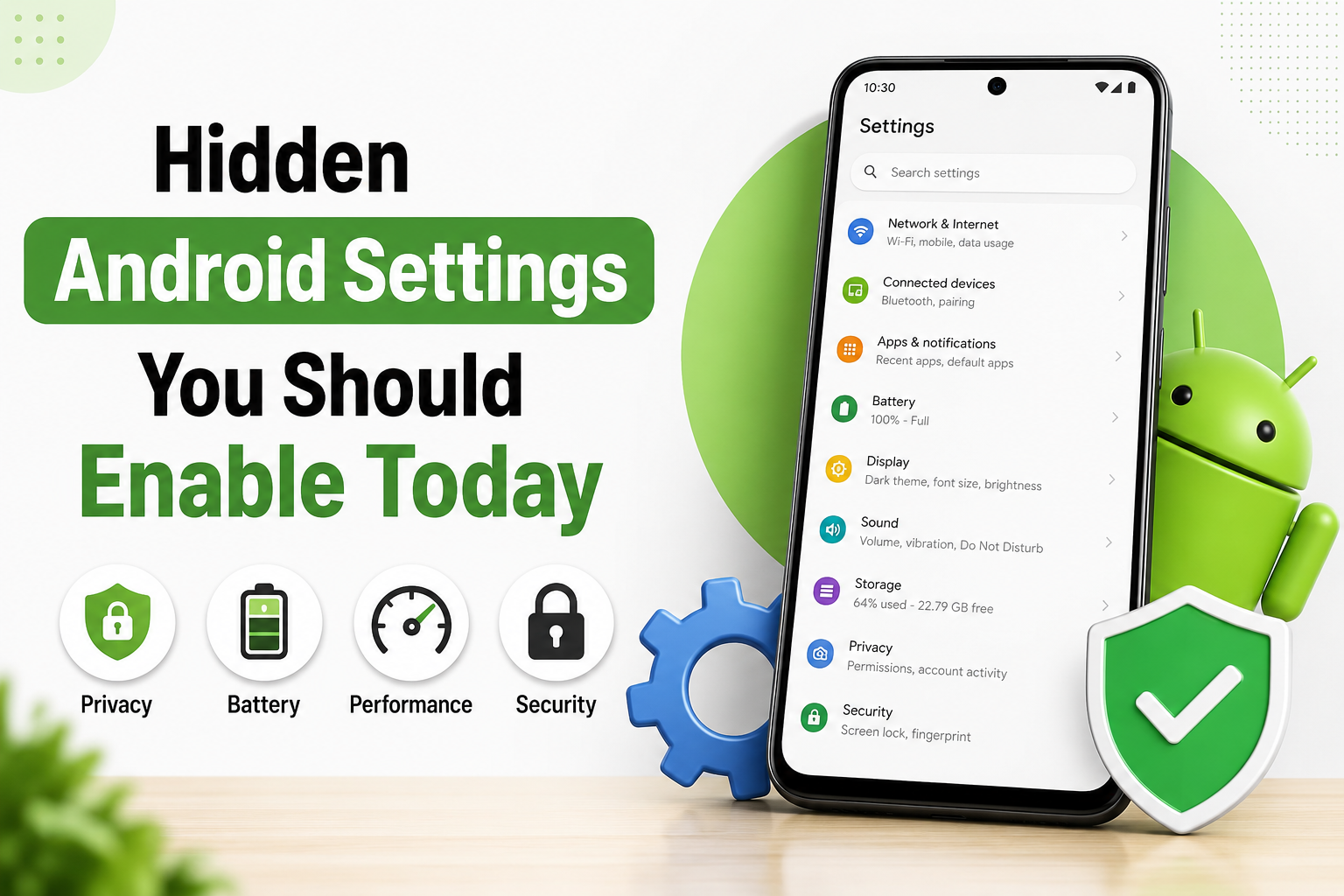
I have been using Android phones for many years, and one thing I learned is that Android has many useful settings that stay hidden from most users. A lot of people use their phones daily for calling, social media, YouTube, and photos, but they never explore the settings deeply. I used to do the same until I started checking different options inside the Settings app. After enabling a few hidden features, I noticed my phone became faster, safer, and easier to use.
In this article, I want to share the hidden Android settings that I personally think every user should enable today. These settings are available on most Android phones, although the exact menu names may vary slightly depending on the brand such as Samsung, Xiaomi, Realme, Oppo, Vivo, or Google Pixel.
Find My Device
This is one of the most important settings that many people ignore. If your phone gets lost or stolen, Find My Device can help you locate it on a map, ring it, lock it, or erase the data remotely.
Go to Settings > Security > Find My Device and turn it on.
I always keep this enabled because a smartphone contains personal photos, contacts, banking apps, and other private information. Enabling this setting gives me peace of mind.
Private DNS for Better Privacy
Whenever I connect to public WiFi at a restaurant or hotel, I prefer to use Private DNS. It encrypts DNS requests and helps improve privacy while browsing.
Go to Settings > Network & Internet > Private DNS and choose Private DNS provider hostname. You can enter a trusted provider such as dns.google.
After enabling this, I noticed that some ads and tracking requests were reduced, and my browsing felt more secure.
Developer Options Animation Scale
This setting is hidden by default. To unlock Developer Options, go to Settings > About Phone and tap Build Number seven times. Then open Settings > Developer Options.
Find these options:
- Window animation scale
- Transition animation scale
- Animator duration scale
Set all three to 0.5x.
I always do this on new phones because it makes the interface feel much faster. Apps open quicker, and navigation becomes smoother without affecting performance.
Adaptive Battery
Many Android users complain about battery drain, but they forget to enable Adaptive Battery. This feature learns which apps I use most often and limits battery usage for apps I rarely open.
Go to Settings > Battery > Adaptive Battery and enable it.
After a few days, I usually notice better battery life, especially on phones with many installed apps.
Restrict Background Activity
Some apps continue running in the background even when I do not use them. They consume battery and mobile data.
Go to Settings > Apps > Select an app > Battery and choose Restricted for apps that do not need background access.
I normally restrict games and shopping apps, and this helps save battery throughout the day.
Notification History
There have been many times when I accidentally dismissed an important notification and could not remember which app sent it. Android has a hidden notification history feature.
Go to Settings > Notifications > Notification History and enable it.
Now I can check all recently received notifications even if I cleared them by mistake.
App Permissions Dashboard
Android includes a privacy dashboard that shows which apps accessed the camera, microphone, location, contacts, and other sensitive permissions.
Go to Settings > Privacy > Privacy Dashboard.
I check this section regularly. Sometimes an app requests permissions that are not necessary for its main function. Revoking unnecessary permissions improves privacy and security.
Disable Camera and Microphone Access Quickly
Modern Android versions provide quick toggles to disable the camera and microphone system wide.
Swipe down the Quick Settings panel and enable Camera Access and Microphone Access toggles.
Whenever I want extra privacy during meetings or while traveling, I turn these off temporarily.
WiFi Scanning and Bluetooth Scanning
Even when WiFi or Bluetooth appears turned off, Android may continue scanning nearby networks and devices to improve location accuracy. This can use additional battery.
Go to Settings > Location > Location Services and disable WiFi Scanning and Bluetooth Scanning if you do not need them.
I disabled both on my phone and noticed slightly better battery life.
One Handed Mode
Large screens are great for videos, but they can be difficult to use with one hand. Android includes a hidden one handed mode on many devices.
Go to Settings > System > Gestures > One Handed Mode and enable it.
I find this very useful while walking or carrying something in the other hand.
Screen Attention or Smart Stay
Some phones can keep the screen on while you are looking at it. This prevents the display from turning off while reading an article or recipe.
Go to Settings > Display > Screen Attention or Smart Stay and turn it on.
I use this feature frequently when reading long documents.
Emergency SOS
Emergency SOS can quickly call emergency services and share your location with trusted contacts.
Go to Settings > Safety & Emergency > Emergency SOS and set it up.
I believe every smartphone user should configure this feature, especially students, travelers, and elderly users.
Auto Archive or Remove Unused Apps
Unused apps take storage space and sometimes continue receiving updates. Some Android phones offer automatic app archiving.
Go to Settings > Apps and look for Unused Apps or Auto Archive options.
Enabling this keeps storage cleaner without deleting personal data.
Data Saver
If you use a limited mobile data package, Data Saver is extremely helpful.
Go to Settings > Network & Internet > Data Saver and enable it.
I activate this feature whenever I travel or use mobile data heavily. It reduces background data usage and helps avoid extra charges.
Live Caption
Live Caption automatically creates captions for videos, podcasts, and voice messages on supported devices.
Go to Settings > Accessibility > Live Caption and enable it.
I find it useful in noisy environments where listening is difficult.
Extra Dim for Night Use
Even the minimum brightness can feel too bright in a dark room. Android has an Extra Dim feature.
Go to Settings > Accessibility > Extra Dim and turn it on.
I use it before sleeping because it feels much more comfortable for my eyes.
Pin Apps on the Screen
App Pinning locks the phone to a single app until the correct PIN, password, or gesture is entered.
Go to Settings > Security > App Pinning and enable it.
Whenever I hand my phone to someone to watch a video or make a call, I pin the app so they cannot open my photos or messages.
Increase Touch Sensitivity
If you use a screen protector, touch response may feel less sensitive.
Go to Settings > Display > Touch Sensitivity and enable it if available.
After turning this on, my phone responded better to light touches.
Automatic Dark Theme
Dark mode looks good and can help save battery on OLED displays.
Go to Settings > Display > Dark Theme and schedule it from sunset to sunrise.
I keep dark mode automatic so the phone changes appearance without any effort.
Smart Lock or Extend Unlock
Entering a PIN repeatedly can become annoying at home. Smart Lock allows the phone to stay unlocked in trusted places or when connected to trusted devices.
Go to Settings > Security > Smart Lock or Extend Unlock and configure trusted locations or devices.
I use this only at home and still keep a strong lock screen password for security.
Digital Wellbeing Focus Mode
Distractions are a major problem today. Focus Mode temporarily pauses selected apps such as social media or games.
Go to Settings > Digital Wellbeing > Focus Mode and choose the apps you want to pause.
I enable Focus Mode while working, and it helps me stay productive.
Conclusion
Android is much more powerful than most people realize. Many useful features remain hidden inside the settings menu, and enabling them can improve privacy, battery life, performance, and daily convenience. The settings I shared in this article are the ones I personally check whenever I set up a new Android phone.
If I had to choose only five settings to enable immediately, I would select Find My Device, Private DNS, Adaptive Battery, Notification History, and Emergency SOS. These five alone can make a noticeable difference in security and usability.
I encourage you to spend a few minutes exploring your phone’s settings today. You may discover features that make your Android experience smoother and safer without installing any extra apps. Small changes in settings often create a surprisingly big improvement in everyday smartphone use.