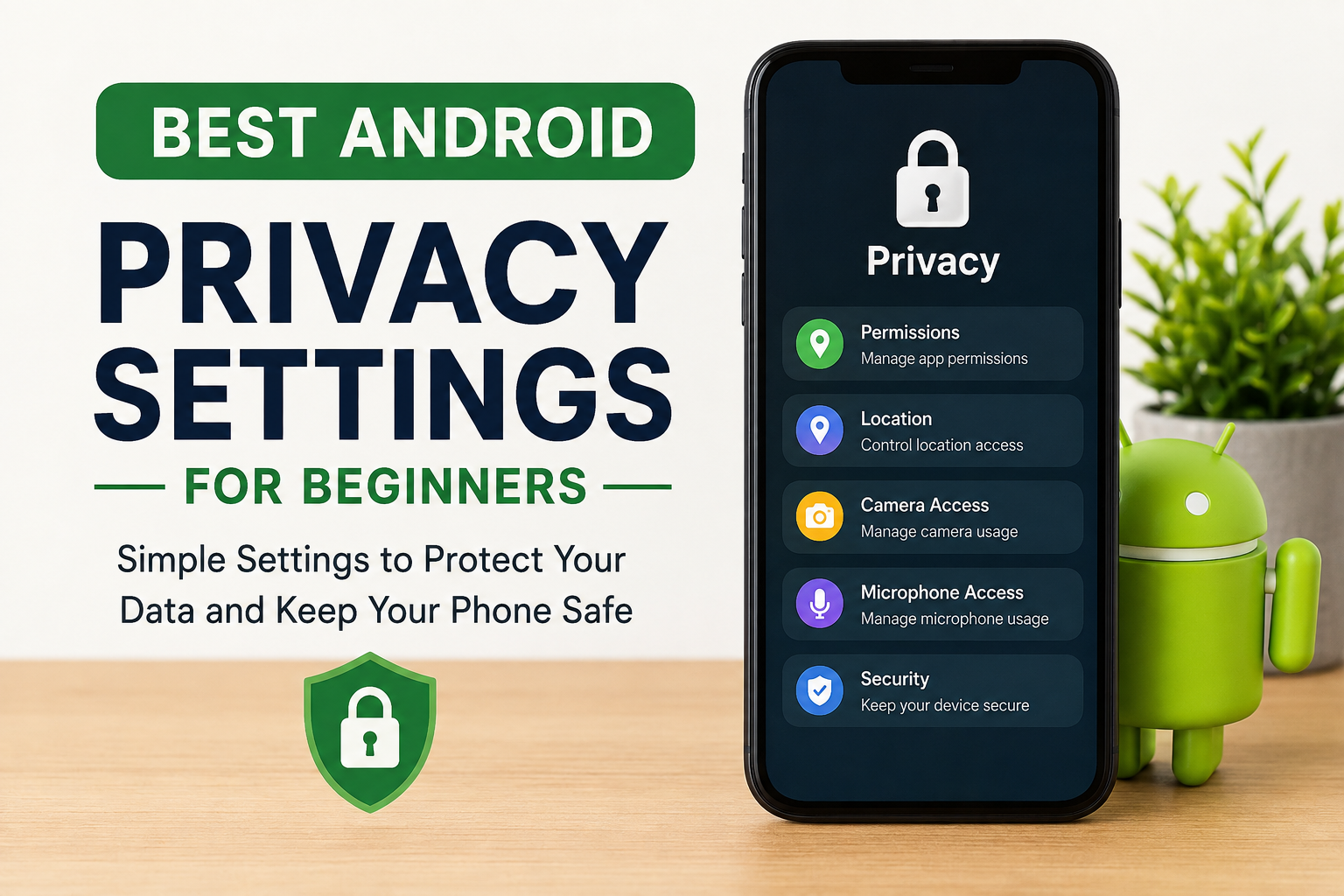
Our smartphones hold almost every part of our daily life. From personal photos and videos to banking apps, social media accounts, emails, and private conversations, everything stays inside one small device. That is why I believe protecting my Android phone should never be ignored. The good thing is that Android already offers many privacy settings that can help keep personal information safe. Most beginners simply do not know where these settings are or why they matter.
When I first started exploring Android privacy features, I realized that a few simple changes made my phone much safer without making it difficult to use. In this article, I will share the best Android privacy settings that every beginner should enable. These settings are easy to understand and can make a huge difference in protecting your personal data.
Start with a Strong Screen Lock
The first thing I always recommend is setting a secure screen lock. Many people still use simple swipe unlock or short PIN codes because they think it is faster. However, if someone gets access to your phone, they can easily open everything.
I prefer using a strong six digit PIN or a complex password. Fingerprint unlock is also a great option because it is both secure and convenient. If your phone supports face unlock with advanced security, that can also be useful.
A secure lock screen is the first layer of protection for everything stored on your device.
Turn On Find My Device
One privacy setting that many beginners forget is Find My Device. This feature allows you to locate your phone if it gets lost. Even more importantly, it lets you remotely lock or erase your phone to protect your personal information.
I always keep this feature enabled because accidents happen. Losing a phone does not always mean losing your private data if Find My Device is ready to help.
Review App Permissions
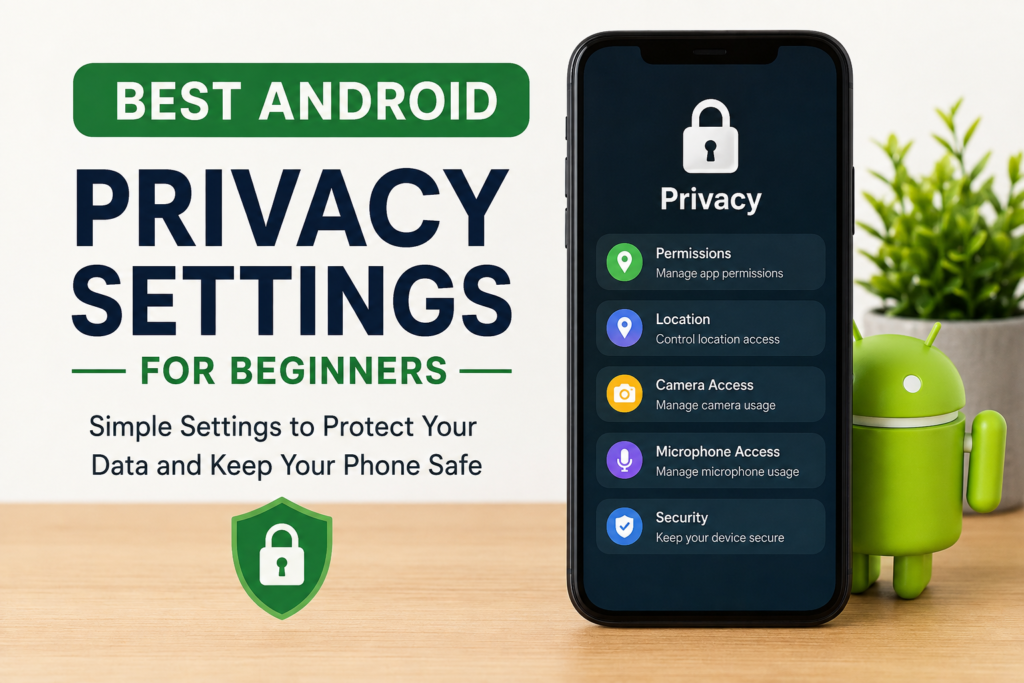
Whenever I install a new app, I never blindly accept every permission request. Many apps ask for access to contacts, camera, microphone, location, storage, and phone calls even when they do not really need them.
I regularly visit the permission settings and check what each app can access. If an app only needs the camera once in a while, I choose the option that allows access only while using the app.
This simple habit keeps unnecessary apps away from my private information.
Limit Location Access
Location tracking can be helpful for maps and ride sharing apps, but not every application needs to know where I am all the time.
Android allows me to choose different levels of location access. I usually select only while using the app instead of allowing constant access.
I also disable precise location for apps that only need my general area. This small adjustment improves privacy without affecting normal usage.
Check the Privacy Dashboard
One feature I really like on modern Android phones is the Privacy Dashboard. It shows which apps have recently used sensitive permissions such as the camera, microphone, and location.
Whenever I notice an app accessing something unexpectedly, I investigate it immediately. Sometimes I remove the permission completely or uninstall the app if it looks suspicious.
The Privacy Dashboard gives me a clear picture of how my phone is being used behind the scenes.
Disable Camera and Microphone When Needed
There are moments when I simply do not want any app accessing my camera or microphone.
Android includes quick controls that let me turn off camera and microphone access for every app until I enable them again.
I find this especially useful during meetings, while traveling, or whenever I want extra peace of mind.
Keep Google Account Security Updated
Since most Android phones are connected to a Google account, protecting that account is just as important as protecting the phone itself.
I always use a strong password and enable two step verification. This means even if someone guesses my password, they still cannot log in without the second verification step.
I also review my Google security settings from time to time to check connected devices and recent account activity.
Turn Off Unnecessary Bluetooth
Bluetooth is useful for wireless headphones, speakers, and smartwatches. However, I do not leave it enabled all day.
When Bluetooth stays on continuously, it can increase security risks and drain battery life.
I simply switch it off whenever I finish using my wireless devices. It only takes a second and adds another layer of protection.
Manage Notification Privacy
Notifications often display private messages directly on the lock screen.
I personally hide sensitive notification content so nobody can read my messages without unlocking the phone.
This is especially useful in public places where someone nearby could easily see incoming texts or emails.
Install Apps Only from Trusted Sources
One lesson I learned early is never downloading random applications from unknown websites.
I always install apps from trusted app stores because they have security checks that reduce the chance of downloading harmful software.
Even then, I read reviews, check ratings, and verify the developer before installing anything new.
Enable Google Play Protect
Google Play Protect automatically scans installed apps for harmful behavior.
I keep this feature enabled because it continuously checks my device in the background.
Although it is not perfect, it provides another important security layer without requiring any extra effort from me.
Keep Android Updated
Many people ignore software updates because they think updates only add new features.
In reality, updates often fix important security problems discovered by researchers.
Whenever my phone receives a security update, I install it as soon as possible. Staying updated is one of the easiest ways to keep hackers away.
Review Connected Devices
Sometimes I connect my phone to laptops, smart TVs, Bluetooth speakers, or other accessories.
Every few weeks I check the list of connected devices and remove anything I no longer use.
This helps prevent forgotten devices from maintaining unnecessary connections to my phone.
Control Ad Personalization
Many online services collect information to display personalized advertisements.
Android allows users to manage advertising preferences and reset advertising identifiers.
I usually limit personalized advertising whenever possible because I prefer sharing less personal information with advertisers.
While this does not completely stop ads, it reduces unnecessary data collection.
Secure Saved Passwords
Modern Android phones can save passwords for websites and apps.
Instead of using the same password everywhere, I create unique passwords for different accounts and let a trusted password manager remember them.
This way, if one website experiences a data breach, my other accounts remain protected.
Be Careful with Public WiFi
Whenever I connect to free public WiFi, I avoid logging into banking apps or entering sensitive passwords.
Public networks are convenient, but they may not always be secure.
If I really need to access important accounts, I use mobile data instead because it generally offers better protection.
Review Installed Apps Regularly
Over time, many of us install applications that we stop using.
Every month I look through my installed apps and remove anything unnecessary.
Unused apps may still have permissions and background activity that I no longer need.
Keeping only essential apps makes my phone cleaner, faster, and more private.
Disable Unnecessary Background Activity
Some applications continue working even after I close them.
Android allows me to limit background activity for apps that do not need constant updates.
This not only improves privacy but also helps increase battery life.
Watch Permission Requests Carefully
Whenever an app suddenly requests access to something unusual, I always stop and think.
For example, a calculator app should not need access to my contacts or microphone.
If a permission request does not make sense, I deny it immediately.
Trusting my instincts has helped me avoid installing several questionable apps.
Backup Your Important Data
Privacy also includes protecting information from accidental loss.
I regularly back up my important photos, documents, and contacts.
If my phone is ever lost or damaged, I know my important memories and files are still safe.
A secure backup gives me peace of mind.
Final Thoughts
I believe Android offers excellent privacy tools, but they only work if we actually use them. Beginners do not need advanced technical knowledge to protect their phones. Most privacy improvements only take a few minutes to enable, yet they provide long term protection for personal information.
The habits I follow every day are simple. I review permissions, keep my phone updated, use a strong screen lock, install trusted apps, and regularly check my privacy settings. These small actions have helped me feel much more confident about using my Android phone.
Privacy is not about hiding something. It is about controlling who can access your personal information. The sooner you start using these Android privacy settings, the safer your digital life will become.