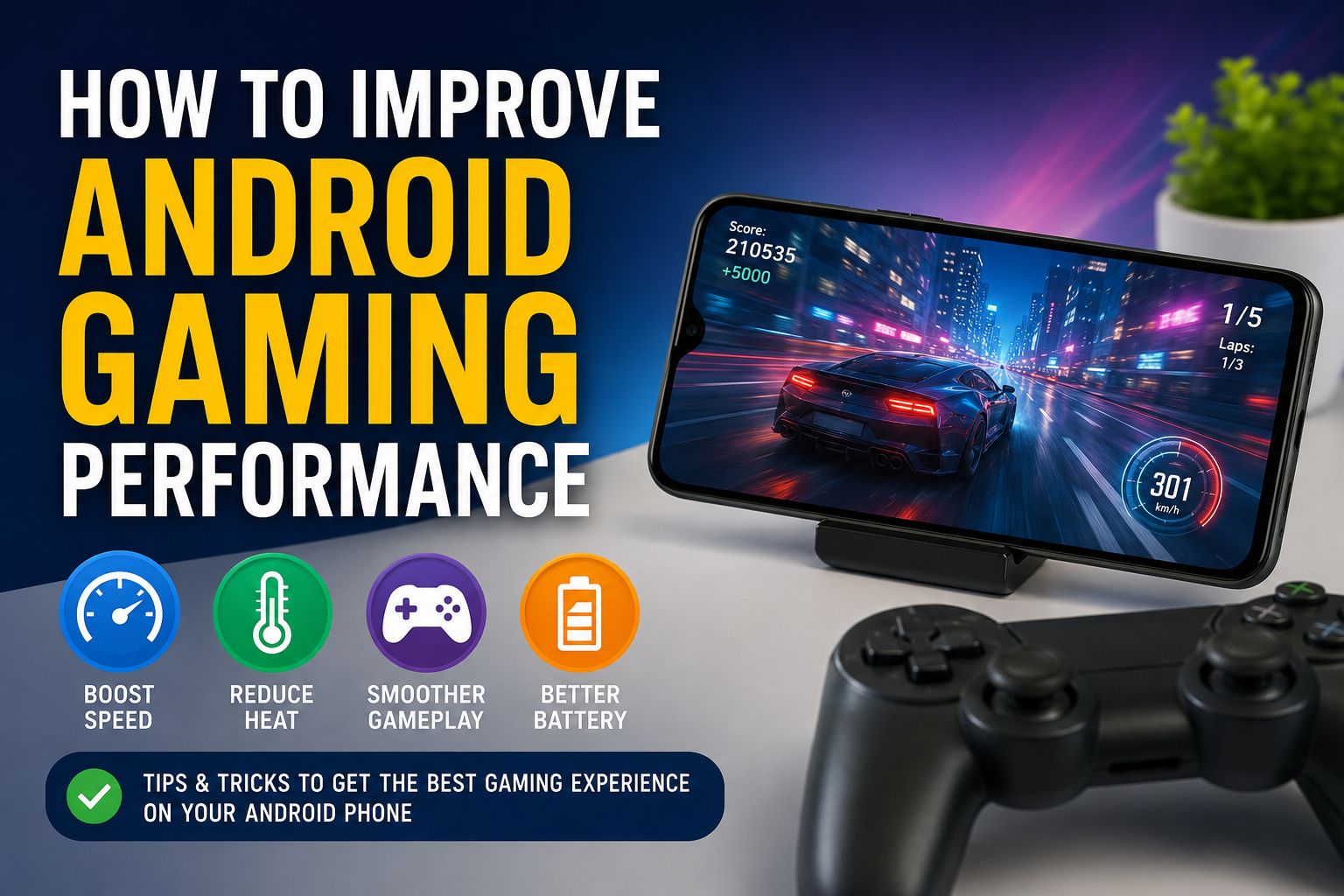
If you enjoy playing games on your Android phone like I do, you probably know how frustrating it is when a game starts lagging or the frame rate suddenly drops. Nothing ruins the gaming experience faster than slow performance, overheating, or constant stuttering. The good news is that you do not always need to buy a new phone to enjoy smoother gameplay. In many cases, a few simple changes can make a noticeable difference.
Over the years, I have tried different methods to improve gaming performance on Android devices. Some tricks worked better than others, but together they helped me get a much smoother experience in both casual and competitive games. In this article, I will share the methods that I personally find useful. These tips are easy to follow and can help almost any Android user enjoy better gaming performance.
Restart Your Phone Before Gaming
One of the easiest things I do before starting a long gaming session is restarting my phone. It may sound simple, but restarting clears temporary files, closes background processes, and refreshes system memory.
After a restart, my phone usually feels faster because unnecessary apps are no longer running in the background. This small habit often improves game stability and reduces random lag during gameplay.
Close Background Applications
Many apps continue running even after you stop using them. Social media apps, messaging apps, cloud storage, and music services all consume RAM and processing power.
Before launching a game, I always close the apps that I do not need. This allows my phone to dedicate more resources to the game instead of splitting them between multiple applications.
The fewer apps running in the background, the smoother most games perform.
Keep Enough Free Storage
Many people ignore storage space, but it plays an important role in overall phone performance.
When my phone storage gets almost full, I notice that games take longer to load and sometimes freeze during gameplay. I try to keep at least fifteen to twenty percent of my storage free.
I regularly remove old videos, duplicate photos, downloaded files, and unused applications. Having extra storage gives Android enough room to operate efficiently.
Update Your Games
Game developers frequently release updates that improve optimization and fix performance issues.
Whenever I notice a game becoming slow, I first check if a new update is available. Many updates improve frame rates, reduce crashes, and make better use of newer Android versions.
Keeping games updated ensures that I benefit from the latest improvements.
Update Android Software
Just like games, Android itself receives updates that improve speed, security, and compatibility.
Whenever my phone receives a stable system update, I install it after checking that other users are not reporting major problems.
Software updates often include performance improvements that help games run more efficiently.
Enable Game Mode
Many Android phones now include a dedicated Game Mode or Gaming Dashboard.
I always turn this feature on because it automatically blocks notifications, improves resource management, and sometimes increases processor performance while gaming.
Different manufacturers give this feature different names, but the purpose is usually the same. It helps provide a smoother gaming experience.
Lower Graphics Settings
Everyone likes playing games with maximum graphics, but sometimes lower settings provide a much better experience.
If I notice lag or overheating, I reduce graphics quality while keeping the frame rate as high as possible.
I would rather enjoy smooth gameplay than experience beautiful graphics with constant stuttering.
Lower graphics settings also reduce battery usage and phone temperature.
Increase Frame Rate If Possible
Many games allow players to choose between different frame rate options.
If my phone can handle it, I select sixty frames per second because gameplay becomes noticeably smoother.
On older devices, I sometimes lower graphics quality first so that the phone can maintain a stable frame rate without overheating.
Consistency is more important than choosing the highest available settings.
Turn Off Battery Saver
Battery Saver mode reduces processor speed to save power.
While this helps extend battery life, it also limits gaming performance.
Whenever I plan to play games, I make sure Battery Saver is disabled. This allows the processor and graphics chip to operate at their full potential.
I simply recharge my phone later instead of sacrificing gaming performance.
Play While Charging Carefully
Some people avoid gaming while charging because phones can become hot.
In my experience, moderate gaming while charging is acceptable if the charger is original and the phone remains cool.
However, if I notice excessive heat, I stop charging and continue playing only after the phone cools down.
Heat is one of the biggest enemies of gaming performance.
Keep Your Phone Cool
A cool phone almost always performs better than a hot one.
When my device becomes too warm, I remove the phone case, move to a cooler room, or take a short break.
High temperatures force many processors to reduce their speed to prevent damage. This process is called thermal throttling.
Keeping the phone cool helps maintain stable frame rates during long gaming sessions.
Use a Reliable Internet Connection
For online games, internet speed is just as important as phone performance.
Whenever possible, I connect to a strong WiFi network instead of relying on weak mobile data.
If WiFi is unavailable, I make sure I have a stable 4G or 5G connection with good signal strength.
A stable internet connection reduces lag, delays, and sudden disconnections.
Remove Unnecessary Widgets
Widgets constantly update information on the home screen.
Although they are useful, having too many widgets can slightly increase background activity.
I only keep the widgets that I actually use and remove the rest.
This creates a cleaner home screen while reducing unnecessary resource usage.
Disable Automatic Downloads
Automatic downloads and updates can suddenly start while gaming.
Whenever this happens, I notice slower internet speeds and sometimes reduced game performance.
Before playing competitive games, I pause automatic app updates and large file downloads.
This ensures that all available bandwidth is dedicated to the game.
Use Lite Versions of Other Apps
Heavy applications consume more storage and memory.
Whenever possible, I install lightweight versions of social media or messaging apps.
These apps use fewer system resources, leaving more memory available for gaming.
Even small improvements can make a difference on older Android phones.
Remove Unused Applications
I regularly go through my installed apps and uninstall the ones I no longer need.
Unused applications occupy storage, generate background activity, and sometimes run hidden services.
Cleaning up unnecessary apps keeps my phone organized and improves overall performance.
It also makes finding important apps much easier.
Clear Game Cache Occasionally
Many games store temporary cache files over time.
Sometimes these files become very large and may affect loading speed.
I occasionally clear the cache of games that have been installed for several months.
This removes temporary files without deleting my saved progress in most cases.
However, I always double check before clearing data because deleting app data may remove saved content if it is not backed up.
Avoid Fake Performance Apps
There are countless applications that claim they can magically speed up Android phones.
From my experience, most of these apps do very little.
Some even display excessive advertisements while consuming system resources themselves.
Instead of installing random booster apps, I prefer following the practical optimization methods mentioned in this article.
Reduce Notifications
Constant notifications interrupt gameplay and sometimes consume processing power.
Before starting an important gaming session, I enable Do Not Disturb mode.
This blocks unnecessary alerts while allowing me to focus entirely on the game.
A distraction free environment makes gaming much more enjoyable.
Choose Games That Match Your Device
Not every Android phone is designed to run the latest high end games at maximum settings.
I always try to choose graphics settings that match my phone’s capabilities.
Sometimes playing a game at medium settings provides a far better experience than forcing ultra graphics on weaker hardware.
Understanding the limits of your device helps you avoid disappointment.
Maintain Battery Health
A healthy battery supports stable phone performance.
I avoid exposing my phone to excessive heat and use reliable chargers whenever possible.
Good battery health contributes to consistent gaming performance over time.
Although batteries naturally age, proper care helps them last much longer.
Final Thoughts
Improving Android gaming performance does not always require expensive hardware or advanced technical knowledge. In my experience, small improvements made consistently produce the biggest results. Keeping storage free, closing unnecessary apps, updating software, lowering graphics when needed, and preventing overheating all work together to create a smoother gaming experience.
I have personally used these methods on different Android phones, and they have helped me reduce lag, improve frame rates, and enjoy games for longer periods without frustration. Every phone is different, but applying these tips gives almost every Android device a better chance of performing at its best.
Gaming should be fun rather than stressful. By taking care of your phone and making a few smart adjustments, you can enjoy smoother gameplay, better responsiveness, and an overall more enjoyable Android gaming experience.